TokenEconomizer: Cut Your Coding Agent Bill by Up to 30% Without Touching the Agent


Your coding agent has amnesia.
Every new session, it walks into the same repo like it's the first day on the job. It types pytest, watches it fail, then remembers it should be python -m pytest. It loads twenty tool definitions it will never call. And now and then it gets stuck, retrying the same broken command until you notice and hit Esc.
You pay for every one of those tokens. Every session.

TokenEconomizer is a new open-source plugin from Microsoft Research and UC Berkeley that goes after exactly this. It sits next to Claude Code, Codex or the GitHub Copilot CLI, watches what happens in your repo, and trims the waste out of the sessions that follow. No new model. No new agent. No API key. Same tool you already use, just cheaper.
I've set it up on every agent I use daily. Below is what it does, why I think you should bother, and how to wire it into all five places I run agents: Claude Code CLI, Claude Code desktop, Copilot CLI, the GitHub Copilot desktop app, and Codex.
What TokenEconomizer Actually Helps With
Coding agents are built to finish tasks, not to finish them cheaply. Every turn re-sends the system prompt, every loaded tool definition, and the whole conversation so far. We also run the same agent on the same repo day after day, so a big chunk of the bill is the same waste on repeat.
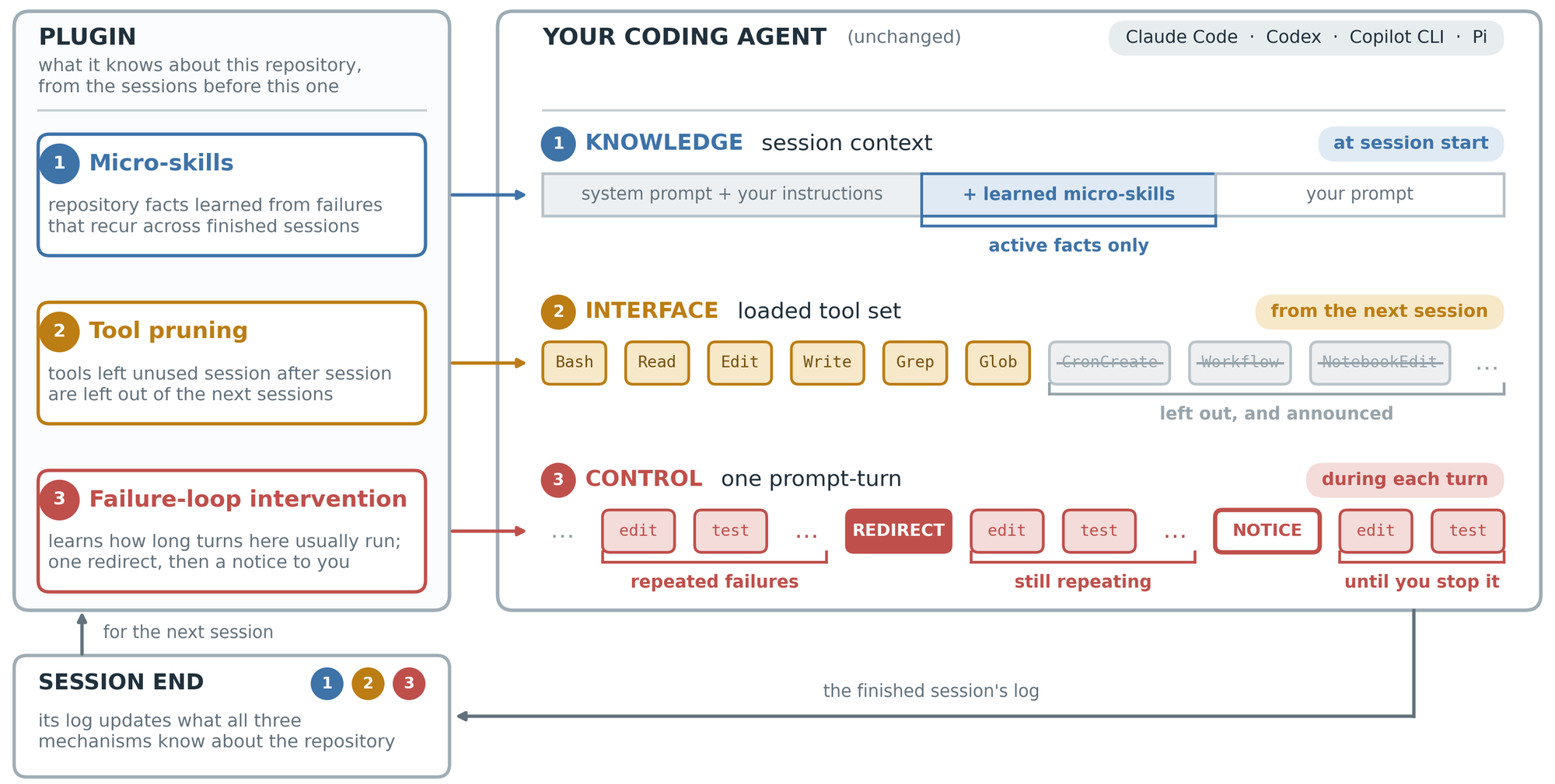
TokenEconomizer goes after three kinds of waste.
1. Re-learning the repository (micro-skills)
Every repo has quirks. A build step that has to run first. npx tsc instead of tsc. An environment variable a test command needs. Your agent rediscovers these every session and burns turns on the failures.
Micro-skills learns those facts from two sources:
- failures that repeat across sessions
- a small model that reviews recent sessions every 3 sessions and proposes facts
A fact only gets injected at session start once three sessions confirm it. The moment later sessions contradict it, it's dropped.
This one is off by default, because the proposer adds model calls. Turn it on in the repos you live in.
2. Loading tools you never use (tool pruning)
Every loaded tool sends its definition with every request. If you never touch the notebook editor or the browser tool in this repo, you still pay for their schemas on every turn.
Tool pruning tracks usage. A tool that sits unused for 10 prompts across at least 2 sessions (or over 5 sessions of any length) gets left out of future sessions, through the agent's own settings file. One command brings it back.
My favourite detail: it waits until your sessions have been idle for an hour before writing the deny list, so it doesn't blow your prompt cache mid-conversation. You only think of that if you've actually measured this stuff.
3. Getting stuck in loops (the loop guard)
You've seen this one. The agent hits the same error three times and keeps going anyway.
The loop guard notices when a turn keeps hitting the same failures and asks a judge model whether the agent is actually stuck. If the judge is at least 70% sure, the guard slips in a short redirect: try a different approach. Once per turn. If the agent is still stuck after that, the guard tells you how to stop it. It never kills a turn on its own.
Why You Should Take Advantage of It
I don't get excited about "10% better" tools. This one earned its place.
The numbers are real, and boring in the best way. On 277 SWE-Bench tasks across six repositories and five agent/model combinations, mean cost dropped 18.4% to 30.9%. It came out cheaper in all 30 repo x combination cells. Pass@1 actually went up in 4 of 5 combinations. Cheaper and no worse is the whole game.
| Agent + model | Cost reduction | Pass@1 change |
|---|---|---|
| Claude Code + Sonnet 5 | 23.6% | +1.3 |
| Claude Code + Opus 4.8 | 30.9% | -1.0 |
| Codex + GPT-5.6 Terra | 24.7% | +0.9 |
| Codex + GPT-5.6 Sol | 26.1% | +1.6 |
| Copilot CLI + Sonnet 5 | 18.4% | +2.6 |
It counts its own cost. Those numbers include the plugin's judge and fact-proposer calls. Cost uses cache pricing, which is how you actually get billed. No vanity metrics.
Your workflow doesn't change. No new tool to learn, no prompt changes. You install it and keep working. That's my "75% easier" rule in practice: the best optimisation is the one you forget about.
It runs on your existing login. No extra API key. Its model calls go through your own agent, on your own plan. Everything it learns stays on your machine in ~/.tokeneconomizer.
You can undo all of it. Contradicted facts get retired. Pruned tools come back with one command. The loop guard only nudges. And if any part of the plugin fails, your session carries on as if it wasn't installed.
Subscription users win too. Even on a flat plan, fewer wasted tokens means fewer rate-limit walls and shorter, cleaner sessions. If you've read my piece on how AI agents load context, you already know context bloat hurts quality, not just cost.
Before You Start
You need three things:
- Python 3.10+ on
PATH(or setTE_PYTHONto point at one) - Git, to clone the repo
- One of the agents, signed in, at a supported version:
| Agent | Supported versions |
|---|---|
| Claude Code | 2.1.300 to 2.1.310 |
| Codex | 0.153.1 to 0.164.0 |
| Copilot CLI | 1.0.83 to 1.0.102 |
Clone it once, somewhere permanent. Claude Code and Copilot run the plugin straight from this clone, so don't drop it in a temp folder you'll clear out next week.
mkdir -p ~/tools && cd ~/tools
git clone https://github.com/microsoft/TokenEconomizer.git
The commands below point at that clone: ~/tools/TokenEconomizer on macOS and Linux, C:\tools\TokenEconomizer on Windows. Cloned it somewhere else? Swap in your own path. Just keep it a full path. Copilot in particular reads a relative path like ./TokenEconomizer as a GitHub repo name and fails.
Windows tip: some agents are fussy about how you write that path (forward or back slashes). I'll flag it per agent.
Claude Code CLI
claude plugin marketplace add ~/tools/TokenEconomizer
claude plugin install tokeneconomizer@tokeneconomizer
claude plugin list   # should show tokeneconomizer@tokeneconomizer ... enabled
On Windows, Claude Code runs hooks through Git for Windows' sh, and it wants an absolute path with forward slashes:
claude plugin marketplace add "C:/tools/TokenEconomizer"
claude plugin install tokeneconomizer@tokeneconomizer
Then:
cdinto a repo you work in and startclaude.- Choose Yes, I trust this folder.
- Run
/tokeneconomizer:statusand allow its script when asked (choose "always"). You should get a short status block, not an error. - Once per machine, and after every Claude Code update, run:
/tokeneconomizer:toolprune refresh-catalog
Don't skip step 4. Without it, tool pruning only sees the handful of tools Claude Code defers, not the ones every session loads.
Where to see what it's doing: Claude Code hides plugin messages in the detailed transcript. Press Ctrl+O and look for lines starting with TokenEconomizer:.
Want to try it for one session first? claude --plugin-dir /path/to/TokenEconomizer/plugin loads it without installing anything.
Claude Code Desktop
Good news: you don't install it twice. The Claude Code terminal, the desktop app's local sessions and the VS Code extension all read the same settings files. Install a plugin at user scope in one and it shows up in the others.
So the easy route:
- Do the Claude Code CLI steps above (marketplace add + install). That registers the marketplace and enables the plugin in
~/.claude/settings.json. - Open the Claude desktop app, go to the Code tab, and start a local session in your repo.
- Type
/tokeneconomizer:statusin the prompt box to confirm it loaded.
Prefer clicking? In a local session in the Code tab, hit the + next to the prompt box, choose Add plugins (or Plugins > Browse plugins), find tokeneconomizer and pick Install for you (user scope). The browser only lists plugins from marketplaces you've already added, so run the claude plugin marketplace add line once first.
Two things to know:
- Cloud sessions don't count. Claude Code on the web and cloud sessions don't load plugins installed on your machine. TokenEconomizer only works in local (or SSH) sessions.
- Check state for free from a terminal. Slash commands cost a model turn. Inside the repo,
~/.tokeneconomizer/bin/te --host claude statuscosts nothing.
If the desktop app ever acts like the plugin isn't loaded, open a terminal, run claude plugin list, and fix it there. Same files underneath.
Copilot CLI
copilot plugin marketplace add ~/tools/TokenEconomizer
copilot plugin install tokeneconomizer@tokeneconomizer
copilot plugin list   # tokeneconomizer@tokeneconomizer ... (enabled)
The path must be absolute. Type ./TokenEconomizer and the Copilot CLI reads it as a GitHub owner/repo name and fails. On Windows PowerShell:
copilot plugin marketplace add "C:\tools\TokenEconomizer"
copilot plugin install tokeneconomizer@tokeneconomizer
Then:
- Start
copilotin your repo. - Pick Yes, and remember this folder for future sessions. This matters more than it looks. Copilot ignores the repo's
.github/copilotsettings in untrusted folders, and that's exactly where tool pruning writes its deny list. - Run
/tokeneconomizer:statusand choose Yes to let its script run. - Once per machine, and after every Copilot update:
/tokeneconomizer:toolprune refresh-catalog
One Copilot quirk: Copilot can't remove individual built-in tools, only whole MCP servers. So pruning only kicks in when every tool of a server goes unused. Think your own servers in ~/.copilot/mcp-config.json, or the built-in github-mcp-server. The deny list lands in .github/copilot/settings.local.json, and the plugin adds that file to .git/info/exclude so it never sneaks into a commit.
Updating is the easiest of the lot: git pull in the clone. Copilot loads the plugin from there directly.
Using BYOK? If your org blocks Copilot's models and you run your own provider through COPILOT_PROVIDER_* variables, the plugin still works. The catch: Copilot doesn't pass those variables to hooks, so the plugin's own model calls (judge, proposer) pause. Fact-learning that needs no model keeps working, and so does the loop guard's hard backstop.
GitHub Copilot Desktop App
This is the one I use most, and it's the easiest. The GitHub Copilot desktop app runs a Copilot CLI process per session, using the same ~/.copilot home directory. Plugins you install for the CLI live in ~/.copilot/installed-plugins/, and the app picks them up.
I checked this on my own machine. The plugins I'd installed via the CLI were sitting in %USERPROFILE%\.copilot\installed-plugins and loaded in my app sessions with no extra step.
So:
- Do the Copilot CLI install steps above. If you don't have the standalone CLI on
PATH, install it withnpm install -g @github/copilot. - Make sure the repo folder is trusted (run
copilotonce in it and pick Yes, and remember this folder). - Start a new session in the app. Plugins load at session start, so a session that's already open won't see it.
- Run
/tokeneconomizer:statusin the chat, or check for free from a terminal inside the repo:
~/.tokeneconomizer/bin/te --host copilot status
Version check: the app ships its own Copilot CLI build. TokenEconomizer supports 1.0.83 to 1.0.102, so check which Copilot CLI version the app is using. For the standalone CLI, copilot --version tells you. If the app runs ahead of that range, it'll probably still work (the plugin fails safe), but nobody has tested it.
If you've been following my Copilot desktop MCP workflow, the two fit together nicely. Tool pruning will eventually switch off any MCP server you added but never actually use in a given repo.
Codex (CLI and Desktop App)
Codex is stricter. It won't run plugin hooks until you've explicitly trusted them. Good security, one extra step.
Install
codex plugin marketplace add ~/tools/TokenEconomizer
codex plugin add tokeneconomizer@tokeneconomizer
Unlike Claude Code and Copilot, Codex copies the plugin. So when you update, it's git pull and the codex plugin add line again.
Trust the hooks (CLI)
- Start
codexin your repo. Choose Trust and continue for the folder. - At Hooks need review, choose Trust all and continue. (Missed it? Run
/hookslater.) - Quit with
/exitand startcodexagain. Hooks only take effect from the next session. - Check it with
$tokeneconomizer:status.
Note the $, not /. Codex has no plugin slash commands, so the plugin's commands are Codex skills: $tokeneconomizer:status, $tokeneconomizer:toolprune, $tokeneconomizer:config set loopguard=off, and so on. Call the skill by name. Ask "what has TokenEconomizer learned?" and Codex may just read the files and guess instead of running the command.
Codex desktop app
Codex plugins work in the desktop app as well as the CLI, and both read the same ~/.codex configuration. Hook trust lives in that config, recorded against a hash of each hook. So the smoothest route:
- Install and trust the hooks once in the CLI, as above.
- Open the Codex app and start a new thread in a trusted project.
- Run
$tokeneconomizer:statusto confirm.
If the app flags hooks for review, approve them there. Either way, one approval holds until an update changes the plugin's hooks.
Three Codex gotchas:
- Trust the project. Tool pruning writes to the repo's
.codex/config.toml, and Codex only reads that in trusted projects. If nothing changes after a deny list goes in, run~/.tokeneconomizer/bin/te --host codex doctor. It tells you whether the project is trusted. - Sandbox prompts. Commands that change settings write to
~/.tokeneconomizer, which Codex's sandbox keeps read-only. Codex will ask. Choose Yes, proceed. - Windows: Codex runs hooks in its native shell and uses the
pythononPATH(3.10+).TE_PYTHONdoesn't change that, so make surepython --versiongives you the right one.
On Codex, pruning targets whole capability packages: sub-agents (collaboration), goals and images (image_media), each only after it's gone unused. Web access, asking you questions and the bundled skills never get turned off.
The Commands You'll Actually Use
Same command names everywhere. Only the prefix changes.
| Where | Type it as |
|---|---|
| Claude Code (CLI + desktop), Copilot (CLI + desktop) | /tokeneconomizer:<command> |
| Codex (CLI + desktop) | $tokeneconomizer:<command> |
| Any terminal, inside the repo (free, no model turn) | ~/.tokeneconomizer/bin/te --host <claude/codex/copilot> <command> |
| Command | What it does |
|---|---|
status |
What it learned, what it did, and what your sessions cost |
microskills |
Facts being injected, and those still forming |
toolprune |
Tools it left out, with the evidence |
toolprune restore |
Give them back (they won't be removed again) |
config |
Every setting in effect |
config set microskills=on |
Turn a mechanism on/off here; add --global for every repo |
My advice after install: in the two or three repos you spend most of your week in, run:
/tokeneconomizer:config set microskills=on
Tool pruning and the loop guard are already on by default. Micro-skills is where the long-term "my agent finally knows this repo" payoff lives, and it pays back fastest in repos you open every day.
One more thing: each agent learns on its own. Codex won't use what Claude Code learned in the same repo. Settings, on the other hand, are shared across all of them.
When Something Looks Off
| Symptom | Fix |
|---|---|
| Hooks seem to do nothing, or import errors | ~/.tokeneconomizer/bin/te doctor and read the errors.log lines |
| "package was not found for the plugin" | You moved or deleted the clone. Add it again |
needs Python >= 3.10 |
Install a newer Python or set TE_PYTHON |
| Nothing ever gets pruned | Run toolprune refresh-catalog (Claude Code, Copilot) |
| Codex deny list applied, nothing changed | Trust the project in Codex |
te shows another agent's state |
Add --host claude, --host codex or --host copilot |
The Takeaway
We burn a lot of energy picking the "right" model and the "right" agent. Meanwhile every session pays a tax for things the agent already knew yesterday.
TokenEconomizer doesn't make your agent smarter. It makes it stop forgetting. And you don't have to change a single habit.
Ten minutes of setup. Up to 30% off every session after that, in the repos where you actually spend your time. If you've already put effort into giving your agents better context files, this is the obvious next step: let the agent learn the rest itself.
Clone it, install it for whichever agents you use, turn on micro-skills in your busiest repo, and check status at the end of the week. Let the numbers make the case.
Repo: github.com/microsoft/TokenEconomizer Paper and interactive results: tokeneconomizer.github.io